Getting directions
IQGeo Platform enables you to navigate to the precise location of selected structures, using co-ordinates, rather than navigating to the nearest address. This is useful for when you are using the navigation tool to search for structures that are located in rural areas, mountains, by the side of the road and so on.
To use the navigation tool, firstly:
-
Identify the latitude and longitude of the feature location required. You can use a co-ordinates converter website to determine these co-ordinates, such as the one provided by the URL below:
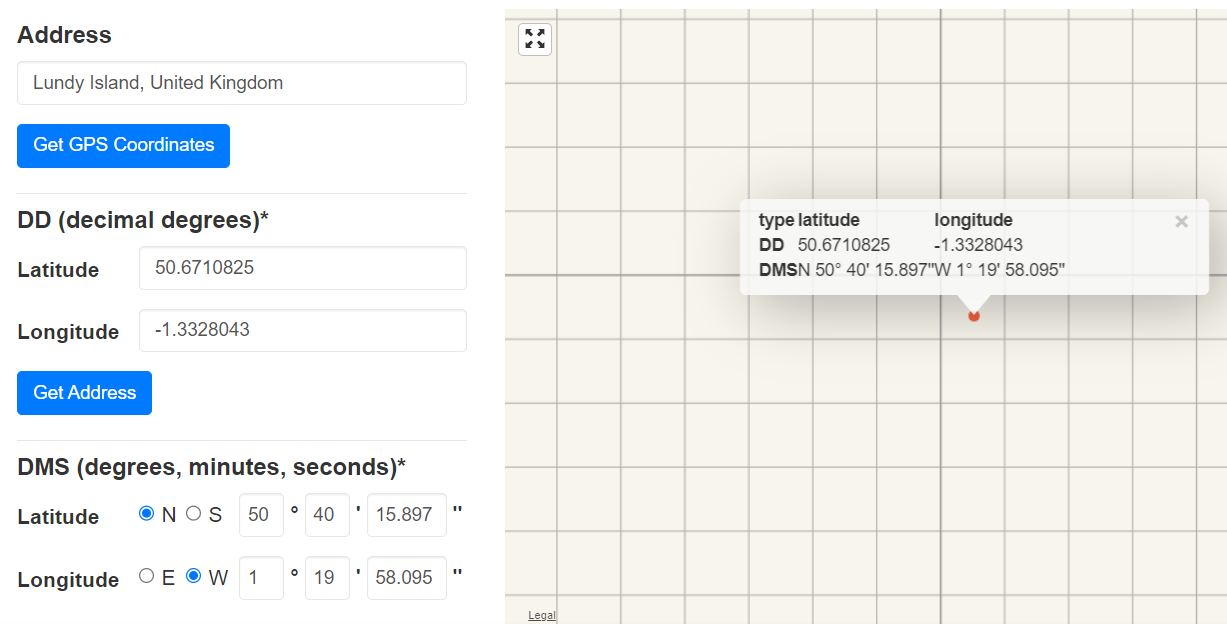
Figure: Find co-ordinates of the required address
Then:
-
Go back to the IQGeo Platform application. You can now create a feature in that specific location.
-
Enter the latitude / longitude coordinates into the Search bar, separated by a comma and a space.
Either:
-
Click the magnifying glass in the Search bar.
Or:
-
Hit the <Enter> key on your keyboard, to start the search.
Or:
-
Click the left mouse button at the end of the line to display the following drop down, which contains the co-ordinates in a hyperlink format.
-
Click this hyperlink.
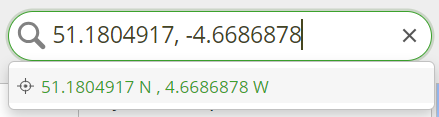
Figure: Search area - Hyperlink co-ordinates
The co-ordinates are then located and shown on the map, and the co-ordinates are listed in the Details pane:
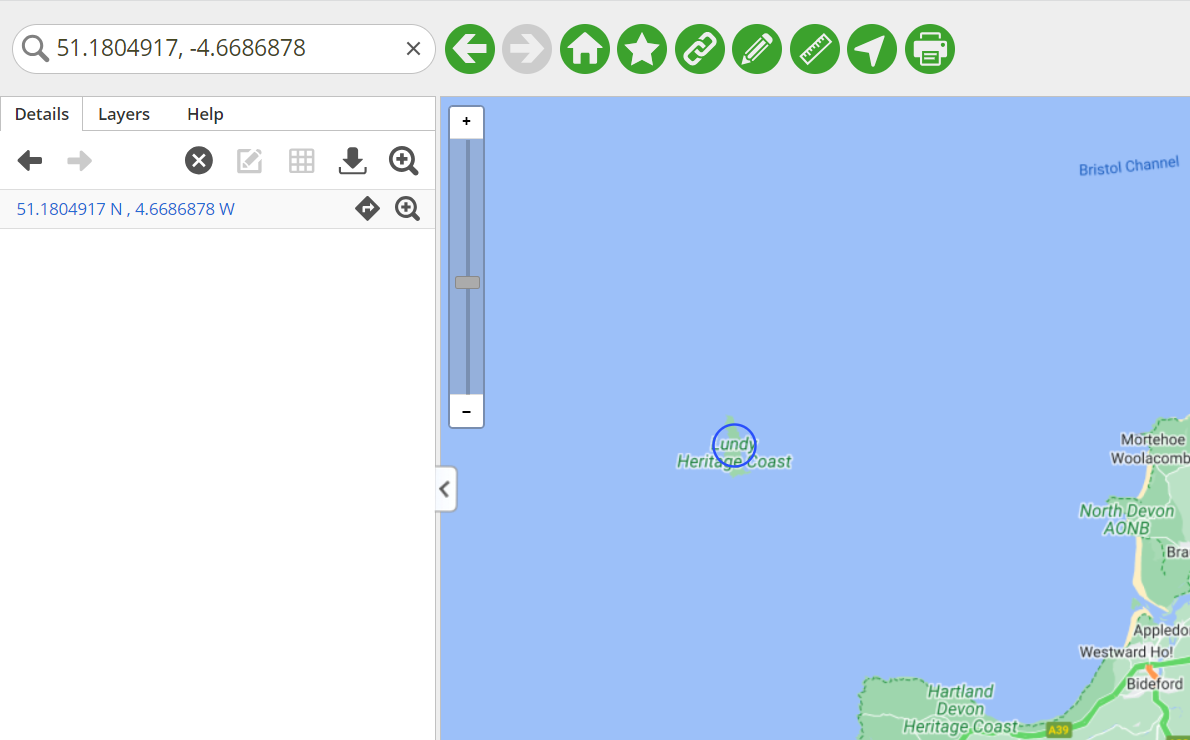
Figure: Co-ordinates located on the map
If you click the Get directions to address icon  on the Details pane, the following dialog is displayed, to warn you that this action will open a new tab or window, with directions to the selected object:
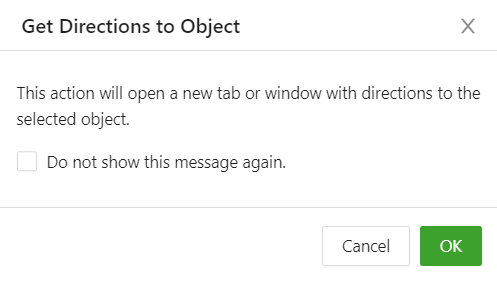
Figure: Get Directions to Object dialog
-
Click OK to clear the dialog. Google maps then opens in another browser window or tab.
Google maps uses the co-ordinates you entered in the Search area of the IQGeo Platform application; however, it shows the name of the location in the Destination area, rather than the latitude / longitude (see the example screen shot below):
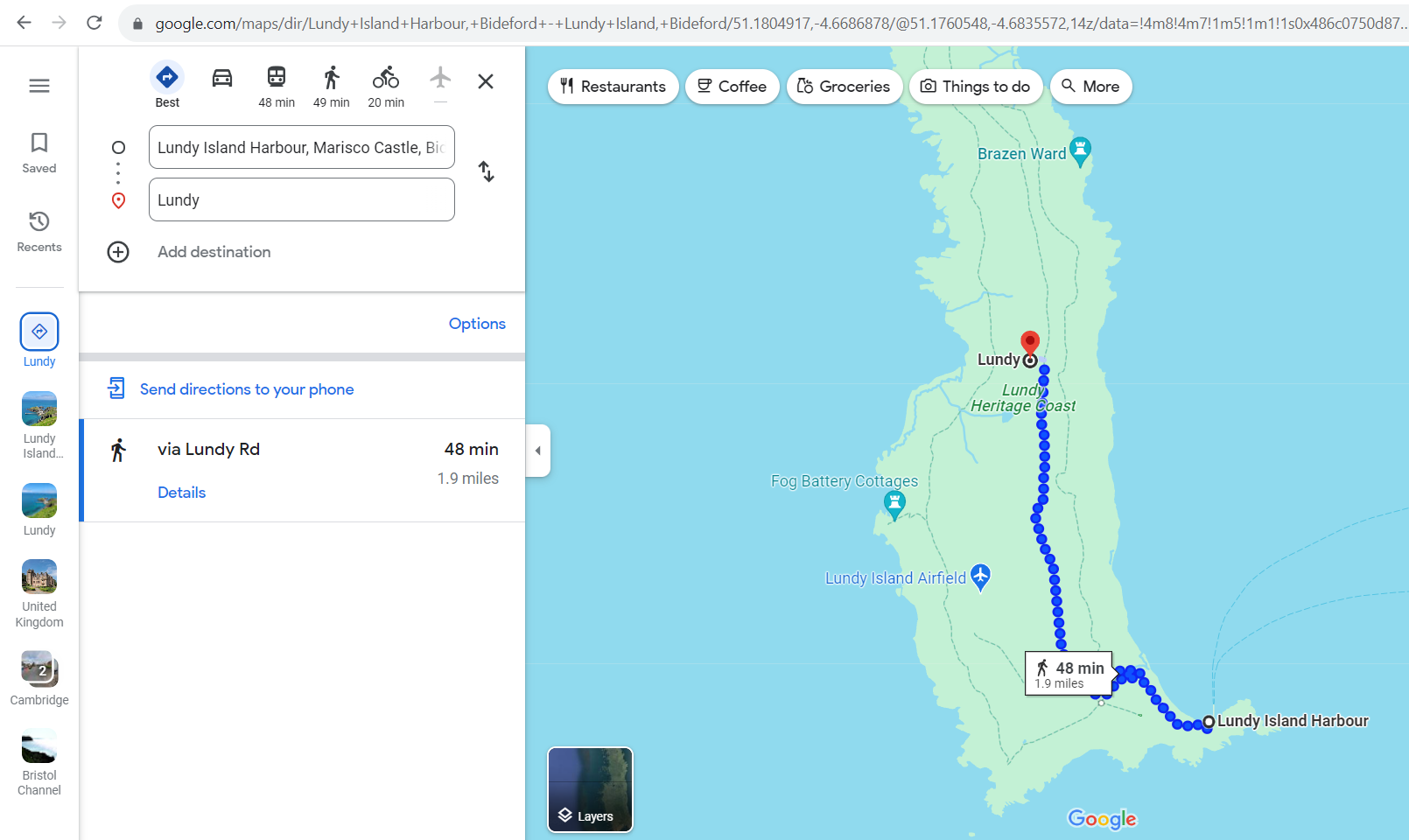
Figure: Google maps